


Developing EPiServer Gadgets
Recently I developed a couple of add-ons to an EPiServer project that were using EasySearch for handling search.
These add-ons included two new Gadgets - one for managing search synonyms and one for viewing the search log.
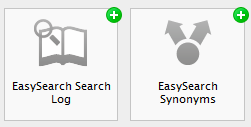 The new gadgets
Here are a few useful tips that might come handy when creating EPiServer Gadgets.
If you are used to JQuery you normally use static id’s to wire up events and such – typically something similar to this:
$(document).ready(function () {
$("#myBtn").click(function () {
alert("Hello world");
});
});
Lets say you have 3 radiobuttons inside your gadget, and you want to set up a client side event for the change event.
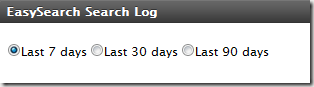
What the editor sees
<div id="interval">
<%= Html.LabeledRadioButton("timeinterval",
string.Format(LanguageManager.Instance.Translate("/gadget/searchlog/option"),
"7"), "7", true, null, null)%>
<%= Html.LabeledRadioButton("timeinterval",
string.Format(LanguageManager.Instance.Translate("/gadget/searchlog/option"),
"30"), "30", null, null)%>
<%= Html.LabeledRadioButton("timeinterval",
string.Format(LanguageManager.Instance.Translate("/gadget/searchlog/option"),
"90"), "90", null, null)%>
</div>
The markup inside the view
<div id="interval">
<input id="id193" type="radio" value="7" name="timeinterval" checked="checked">
<label for="id193">Last 7 days</label>
<input id="id194" type="radio" value="30" name="timeinterval">
<label for="id194">Last 30 days</label>
<input id="id195" type="radio" value="90" name="timeinterval">
<label for="id195">Last 90 days</label>
</div>
The rendered html
Since gadgets can have multiple instances present at the same time one cannot use static values for ids. The trick is to use the gadget instance object passed to the init method, and wire up your events inside the "epigadgetloaded” event. You can then use the gadget.element to get hold of the HTML DOM element for the gadget in question.
(function ($) {
easysearchsearchlog = {
init: function (e, gadget) {
// gadget.element gives us access to the gadget html dom element
// Listen to the gadget loaded event to set up the change event
$(this).bind("epigadgetloaded", function (e, gadgetInstance) {
$("#interval select", gadget.element).change(function () {
var lang = $(this).val();
var time = $("#interval input:checked").val();
if (time == null)
time = "7";
gadget.loadView({ action: "Reload", timeInterval: time, language: lang });
});
$("#interval input", gadget.element).change(function () {
var time = $(this).val();
var lang = $("#interval select option:selected").val();
gadget.loadView({ action: "Reload", timeInterval: time, language: lang });
});
});
}
};
})(epiJQuery);
Use the [ScriptResource] attribute in combination with a ClientScriptInitMethod in the [Gadget] attribute to reference a script to be added to the dashboard and a method in this script to call for each gadget on a tab.
[Gadget(ResourceType = typeof(SearchLogController),
ClientScriptInitMethod = "easysearchsearchlog.init",
IconUrl = "Content/searchhistory.png",
NameResourceKey = "GadgetName", DescriptionResourceKey = "GadgetDescription")]
[EPiServer.Shell.Web.ScriptResource("Scripts/searchlog.js")]
public class SearchLogController : Controller
Note the use of html helper LabeledRadioButton to ensure input controls with corresponding labels.
Checklist: Playing nice on the dashboard
Making a gadget means sharing a common workspace with others. Take a moment to review this list before publishing your gadget to a wider audience:
- “Namespace” your CSS classes
- Namespace and encapsulate your JavaScript methods to avoid polluting global namespace
- Don’t override other gadget’s styles
- Don’t assume other gadgets will stay the same
- Never assume there is only one gadget of your kind (affects element ids)
- Prefer documented CSS classes for a consistent look and feel over time
- Avoid long-running operations (such as reports or RSS operations) from your default action
Read more
OnlineCenter Developer Documentation
Gadgets – Developer Tutorial
Comments