

Symbols published for products in the R2 wave 2011
The debugging symbols for the second release of EPiServer CMS, Community, Mail, Composer and Commerce have now been published on http://symbols.episerver.com/.
Let me show you how to set up a few common debuggers to automatically download symbols from our store.
Visual Studio 2008/2010
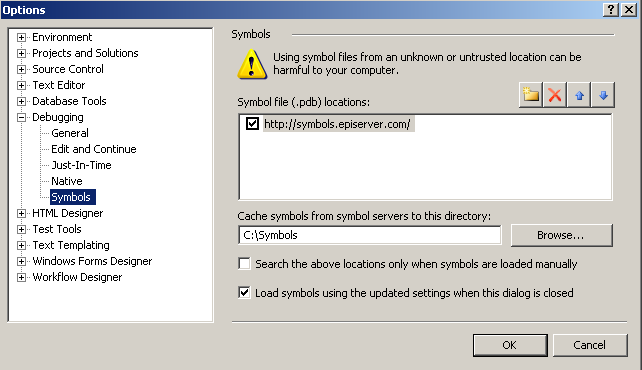
Open up the Tools menu, and select Options… In the dialog that appears, open “Debugging” and select Symbols. Here, enter our symbol server location and a local directory for the symbol cache.
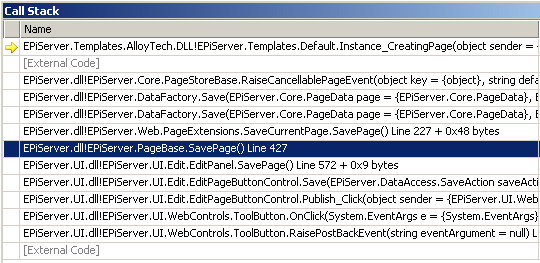
With the symbols, the Call Stack window now displays a little bit more information:
How to download the symbols for a set of EPiServer DLLs
With the symchk.exe tool, which is a part of Debugging Tools for Windows, you may obtain the symbols for a set of DLLs on your local machine. This is how you can download the EPiServer symbols for a web application.
- Make sure you have Debugging Tools for Windows installed
- Open up a command prompt in the directory that contain the EPiServer DLLs whose symbols you want to obtain.
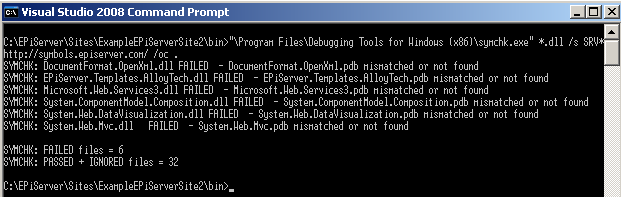
- Run the command "\Program Files\Debugging Tools for Windows (x86)\symchk.exe" *.dll /s SRV*http://symbols.episerver.com/ /oc .
You may need to adjust the path to the symchk.exe tool depending on your CPU architecture.
The parameter “*.dll” specifies that symbols for all DLLs in the current directory should be requested from the symbol server. The next parameter, /s SRV*http://symbols.episerver.com/, specifies which symbol path to use. The last parameter, /oc . tells the symchk.exe tool to output all the downloaded symbols to the current directory (alongside the DLLs).
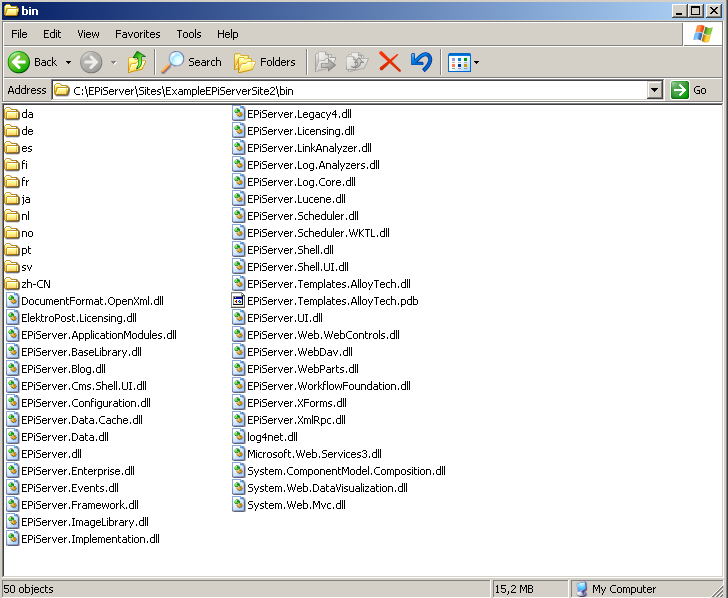
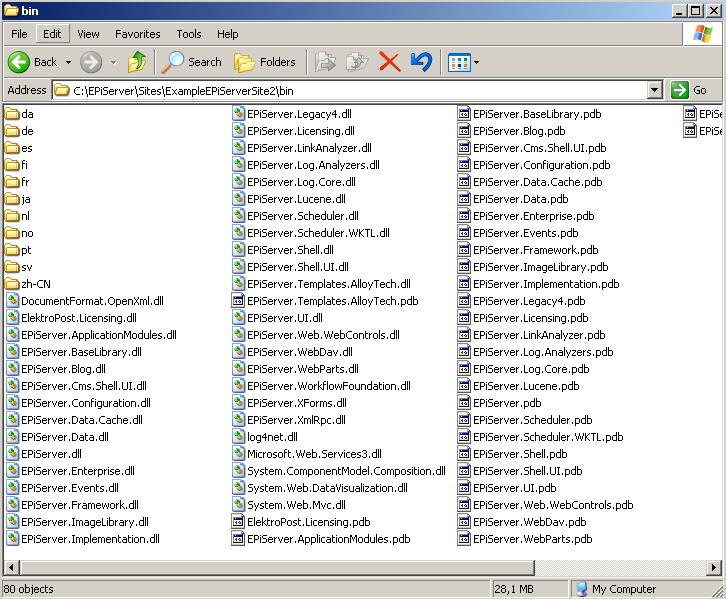
A typical AlloyTech bin folder looks like this just after the installation:
Using the symchk.exe tool, the symbols are downloaded from EPiServer’s symbol server to the current folder.
After the command has finished executing, the bin folder of the site have been populated with PDBs for all binaries that matched a symbol on our symbol server.
Configuring WinDBG
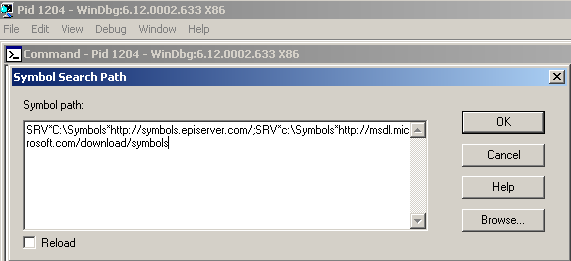
Usually, you configure WinDBG’s symbol search path to include Microsoft’s Symbol Server. You may add EPiServer’s symbol store too, and search it as well as Microsoft’s symbol store. Just include SRV*C:\Symbols*http://symbols.episerver.com/ in the Symbol Search Path. Separate multiple entries with semi-colon.
Happy debugging!
Comments