

Uninstalling EPiServer CMS Visual Studio Integration Extension
Based on Visual Studio 2010 and the CMS 7 Preview + CMS CTP10
EPiServer 7 will include some excellent additions to the Visual Studio integration in order to continue to make your development experience easy.
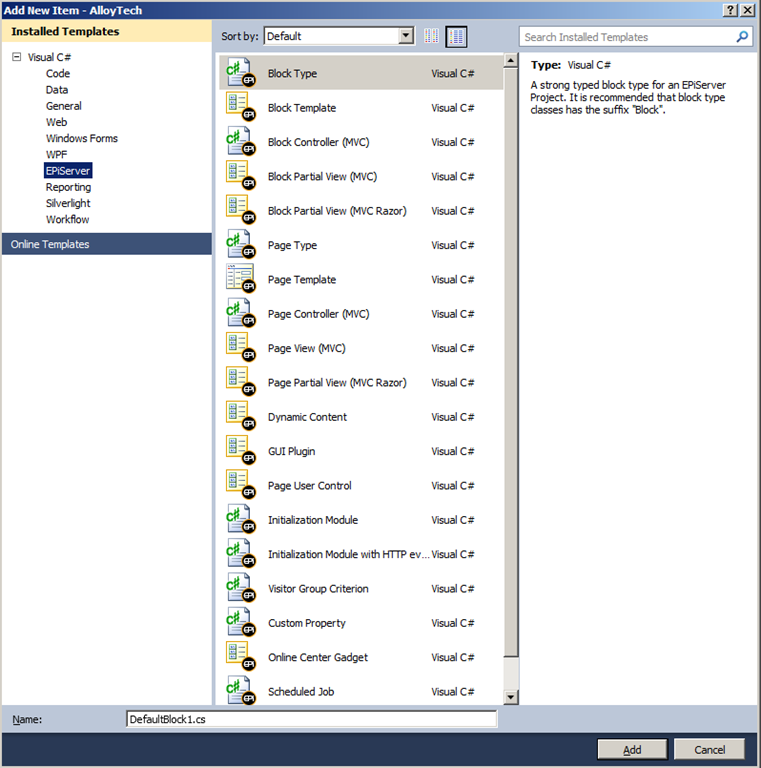
The mechanism for installing the integration, however, has changed from previous releases. While multiple options still exist for deployment in Microsoftland, EPiServer, which previously used an MSI, is now using the VSIX approach. If you’re testing out a CTP and have installed an earlier version, or if for any reason a new release comes out, you may wish to uninstall this and update your environment with the latest and greatest. But how? Poking around the web you will find a variety of methods including information, or misinformation, about where the files are located, manual removal steps (i.e. delete files), etc. But let’s forget about all of that! There is an easier way to remove the integration than digging around and manually deleting things.
Steps:
- Start Visual Studio
- If you already have Visual Studio started and have an open/unsaved project now is probably a good time to save it
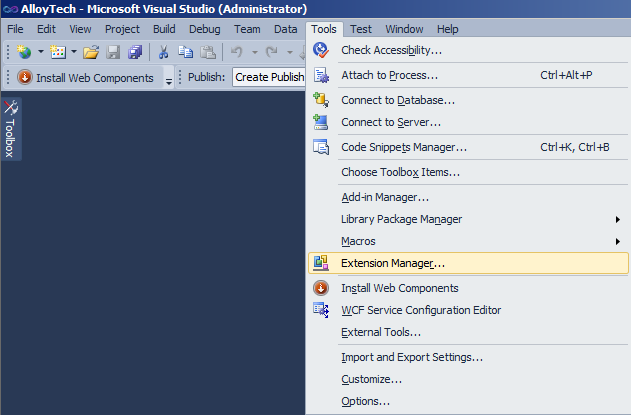
- Navigate to the Tools~Extension Manager menu
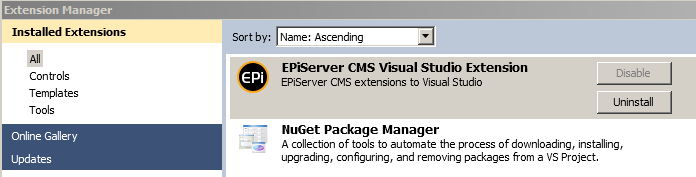
- Look for the somewhat obvious “EPiServer CMS Visual Studio Integration” item
- Select the “Uninstall” button
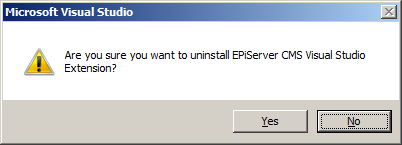
- Select “Yes” when asked to confirm the uninstall action
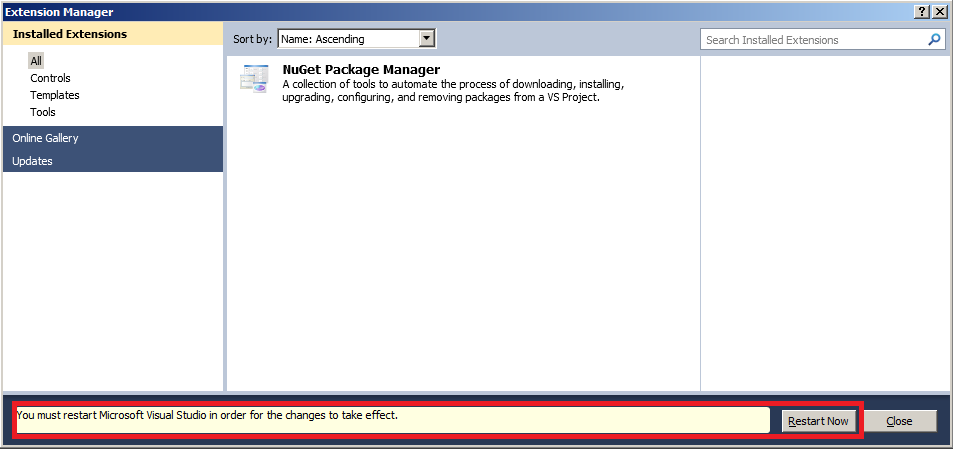
- Visual Studio will notify you that it needs to restart in order for the changes to take effect. If you’re willing select the “Restart Now” button
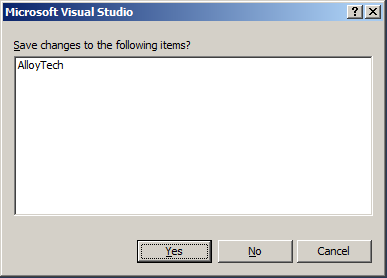
- If you had a project open and you didn’t save it as I mentioned in one of the first steps above hopefully Visual Studio is smart enough to ask you if you want to save first. In my case it was:
- Smile and carry on with whatever you were doing which hopefully includes installing the best EPiServer Visual Studio Integration in the history of mankind
Note: Based my brief poking around my own file system it appears we were installing the files here in the CMS 7 Preview as well as CTP10: C:\Program Files\Microsoft Visual Studio 10.0\Common7\IDE\Extensions\EPiServer.
For additional info on installing, managing, and removing Visual Studio extensions please reference: http://msdn.microsoft.com/en-us/library/dd293638.aspx
Comments