

Manual Code Deployment Using the Visual Studio Publish Feature
Based on CMS 6 and Visual Studio 2008
Code deployment in EPiServer, not to be confused with content, is typically done using the preferred .NET deployment tool. EPiServer enables a flexible choice to be implemented as appropriate for your solution based on your requirements, toolsets, and preferences. This could be as simple as utilizing the Visual Studio Publish feature for manual deployment or by using automated build/publish scripts with tools like Microsoft TFS and MSBuild. As an additional example, others have used alternate preferred solutions such as Subversion for Source Control and CruiseControl.NET for build and deployment.
I had documented the high level manual steps for using Visual Studio 2008 some time ago but, wrapped up and juggling many other things, I’d never posted it. It’s a bit dated since the specific details and screen shots are based on that rusty old Visual Studio 2008 but should still prove useful for many.
The high level steps are as follows:
1. On the Development Workstation
- Build the project in Visual Studio using the Release configuration.
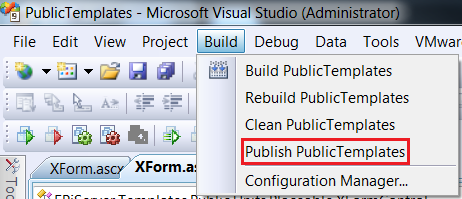
- Publish only the files needed to run the application to a local folder (that is NOT part of a website) using the Visual Studio Publish feature. Note that this does NOT include the configuration files. You will need to use the configuration files created by the EPiServer Deployment Center in the following steps and add your configuration changes to them or you will get an “access denied” error when browsing the target site.
http://msdn.microsoft.com/en-us/library/aa983453.aspx
2. On the Target Web Server
- Create a site without a database using the EPiServer Deployment Center.

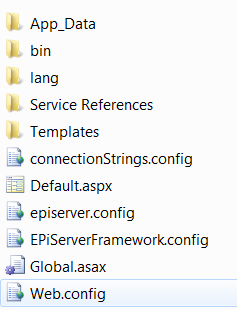
- Copy all of the files published from Visual Studio to the physical path of the site that was created using EPiServer Deployment center replacing files on the target (e.g. C:\EPiServer\Sites\<mynewsitename>). The directory will look similar to the screen shot below:
3. On the Target Database Server
- Copy the EPiServer database files from the Visual Studio project to the target database server and attach the database using SQL Server Management Studio.
- Create and grant access to any logins that your application will need to access the EPiServer database.
4. On the Target Web Server
- In connectionStrings.config (located at C:\EPiServer\Sites\<mynewsitename>), modify the database connection string to point to the newly attached database.
- In episerver.config (located at C:\EPiServer\Sites\<mynewsitename>), modify the "pageStartId" attribute of the siteSettings element(s) to point to your start page(s).
- Add any other configuration settings to the configuration files that you made specifically for your site(s).
Cheers!
Comments