

Upgrading an EPiServer CMS 5 R2 SP2 Site to CMS6 when running Oracle
If you’re running your EPiServer CMS 5 R2 SP2 site on Oracle and want to get all the advantages of CMS 6, you can easily upgrade the site using the these files:
1. The zip packet includes 3 files:
- Upgrade Site.metadata
- Upgrade Site (Oracle).ps1
- Upgrade_Oracle_5sp2To6.sql
- EPiServerUpgrade.CMS5.dll
2. Copy the 'Upgrade Site.metadata' and 'Upgrade Site (Oracle).ps1' files to the <Program Files>\ EPiServer\CMS\6.0.530.0\Upgrade\System Scripts folder as shown below:
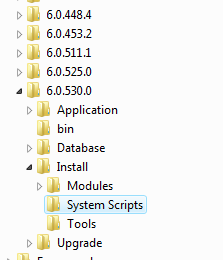
3. Copy the EPiServerUpgrade.CMS5.dll file to the <Program Files>\ EPiServer\CMS\6.0.530.0\Install\Tools folder. Note that this should replace the existing one.
On a 64 bit operation system the EPiServer folder hive is located in the <Program Files (x86)> folder.
4. Copy the sql file to a convenient folder as it will be needed in step 6 below.
5. The EPiServerUpgrade.CMS5.dll file needs to be registered in the machine's Global Assembly Cache. To do this run the following command from a command prompt (Administrator privileges will be required for this on Windows Vista, Windows 7 and Windows Server 2008 / 2008 R2). This also implies that the gacutil utility is also installed on the current computer:
- gacutil -i "<Program Files>\ EPiServer\CMS\6.0.530.0\Install\Tools\EPiServerUpgrade.CMS5.dll"
Replace the <Program Files> part with your actual program files (or program files x86) folder path.
6. First you should upgrade the database with the latest schema. It is very important to ensure you back-up your CMS database before you perform the following steps.
- Connect to your <OracleEpiserverUser> through sqlplus.exe.
- Run the script Upgrade_Oracle_5sp2To6.sql from the location you copied it to.
- Make sure you don’t get any error running this script.
7. Start the EPiServer Deployment Center and you should find a new option called “Upgrade site with Oracle database”:

Select this item and click on the 'Run' button. Now a list of possible CMS 5 R2 SP2 sites installed on the machine should be shown:

Select the site to be upgraded and click on 'Next'.
8. Once the deployment script has finished you should be able to browse your upgraded site. You’ll find a few look and feel differences in Edit and Admin mode plus the new shiny OnlineCenter as shown below:

Note: If you need to upgrade from an older version of CMS than CMS 5 R2 SP2 please contact us via support: support@ep.se
Enjoy the new version!!!!
Comments