
EPiImage Part 4: EPiImageGallery Viewer
EPiImageGallery Viewer is a sample user control for rendering EPiImageGallery properties as a slider. It uses jQuery Tools to create the smooth sliding of the thumbnails.
This is the fourth and final part of a four part series that started with EPiImage Part 1: EPiImageResizer

EPiImageGallery Viewer
This is a sample user control how to use a EPiImageGallery Property on a page. It uses jQuery Tools to create the slider. Please note that this just one way to use the EPiImageGallery Property. The property provides the images as an image collection so it is easy to show the images the way you want (e.g. as a list, a slideshow etc.). See the blog post EPiImage Part 3: EPiImageGallery Property to see how to access the image collection directly.
What does it do?
The gallery shows 4 thumbnails and a big view of the first thumbnail. If you click any of the thumbnails the big image will be replaced by the thumbnail being clicked. If you have added an image description, it will be shown below the big image.
If you have more then 4 images in the gallery, you will get a next arrow that lets you scroll to the next 4 thumbnails and so on.

The slide functionality is built using jQuery Tools and is based on this jQuery Tools demo:
Scrollable demo 1 / 11 : Minimal setup for scrollable
How do I start using it?
Simply download the module from EPiCode and install it using EPiServer Deployment Center. (It just copies in a few files, it doesn’t touch your web.config or require a rebuild)
Usage:
Register the user control on the page:
<%@ Register TagPrefix="EPiImage"
   TagName="EPiImageGalleryViewer"
   Src="~/EPiImage/UserControls/EPiImageGalleryViewer.ascx"%>
Then add this tag with the PropertyName set to the name of the EPiImageGallery property we want to render:
<EPiImage:EPiImageGalleryViewer
    PropertyName="MyImageGalleryProperty"
    runat="server" />
To end this series I will cover a few general EPiImage topics:
Configuring EPiImage
You can configure EPiImage by editing the ~/EPiImage/~EPiImage.config file.
Here you can change the path where EPiImage stores the cached images: (Please note: It has to be a VPP path)
<scaledimagechache vpppath="/Global/Scaled/" />
Scheduled Job
Over time the EPiImageResizer creates a lot of cached images in the /Global/Scaled/ folder. If you like you can run the scheduled job “EPiImage Cleanup” to delete old images. It will look at the “deletefilesolderthan” setting in the ~/EPiImage/~EPiImage.config file. 7 means that the scheduled job will delete all cached images older than 7 days.
<cleanupjob deletefilesolderthan="7" /> 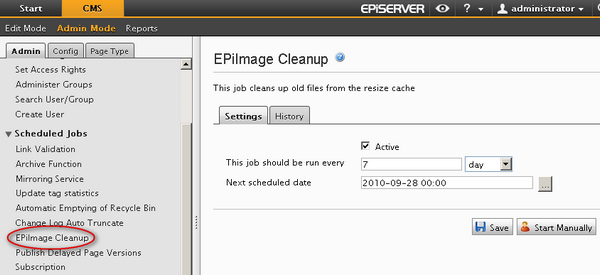
Final Note
So that concludes my 4 part blog series about EPiImage. I hope this module will be helpful in your next project. :-)
I am also happy to announce that EPiImage is no longer in beta!
Have feedback? Want to help out?
Leave your feedback in the comments, or feel free to email or twitter me: @ahaneng :-)
And finally: Thank you to Making Waves for donating it to EpiCode!
Feature suggestion: Ability to disable/enable big view of first picture.
How about a lightbox-type feature?
Is there a version where iPad users can swipe to move between images?